AI tools
The AI tools help monitor the community and quality check incoming data like forms, applications and reports. Chatbots entertain players and answer questions about rules, rates, wiki info and much more.
The AI tools are designed to alert admins when issues are detected, and leave humans to decide.
AI tools are currently in beta. If you experience issues, please report on our Discord.
Chatbot
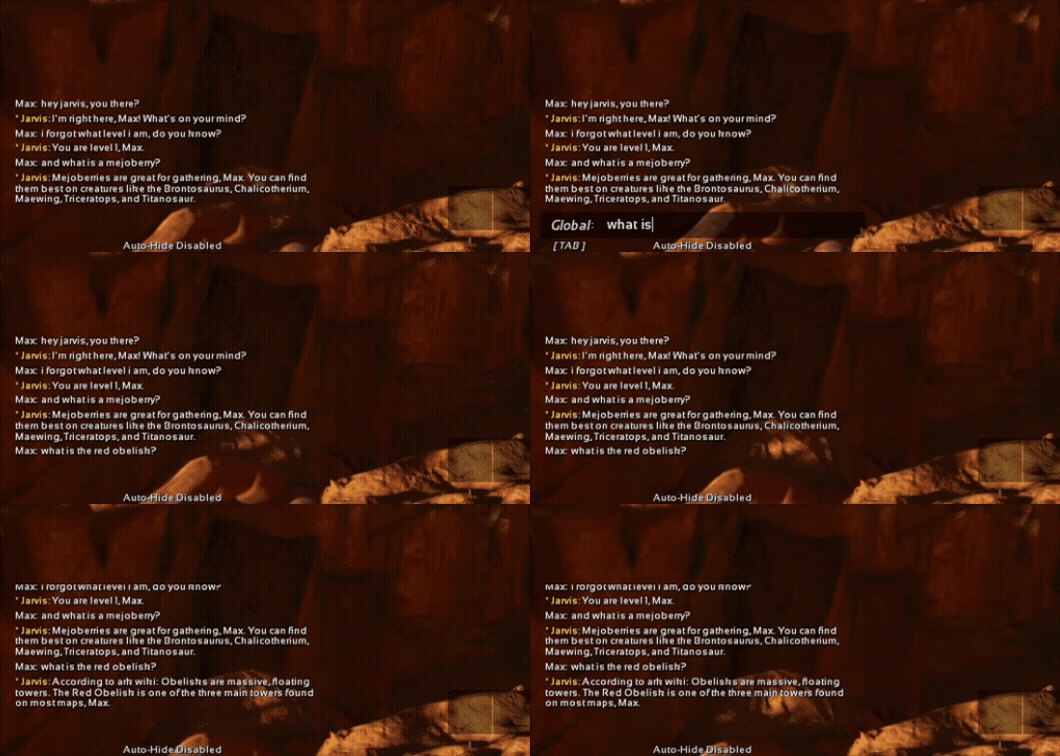
The AI Chatbots can help you engage with your community and provide quick answers to common questions or onboard new players. The bot can provide explanations about your rules, rates, search configured wiki sites, and much more.
You can use multiple bots simultaneously. Go to AI chatbot >
The chatbot only works with games that support chat logging. See GSA features page for supported games.
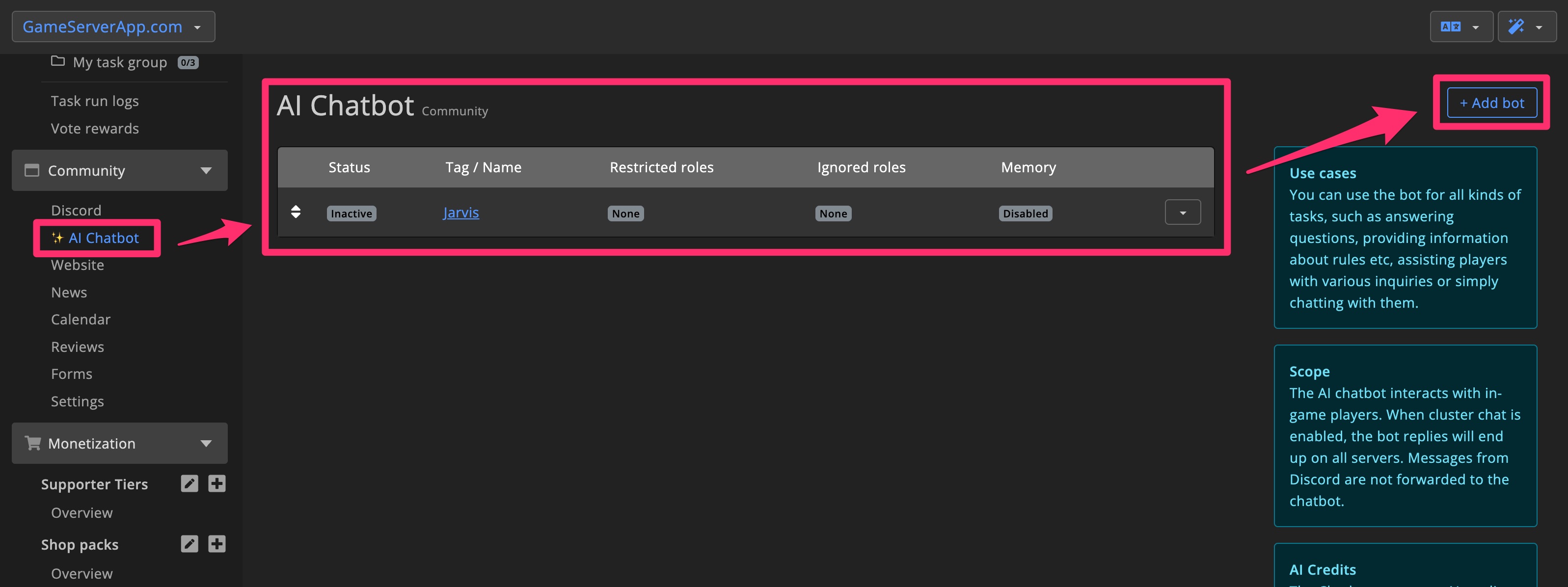
Settings
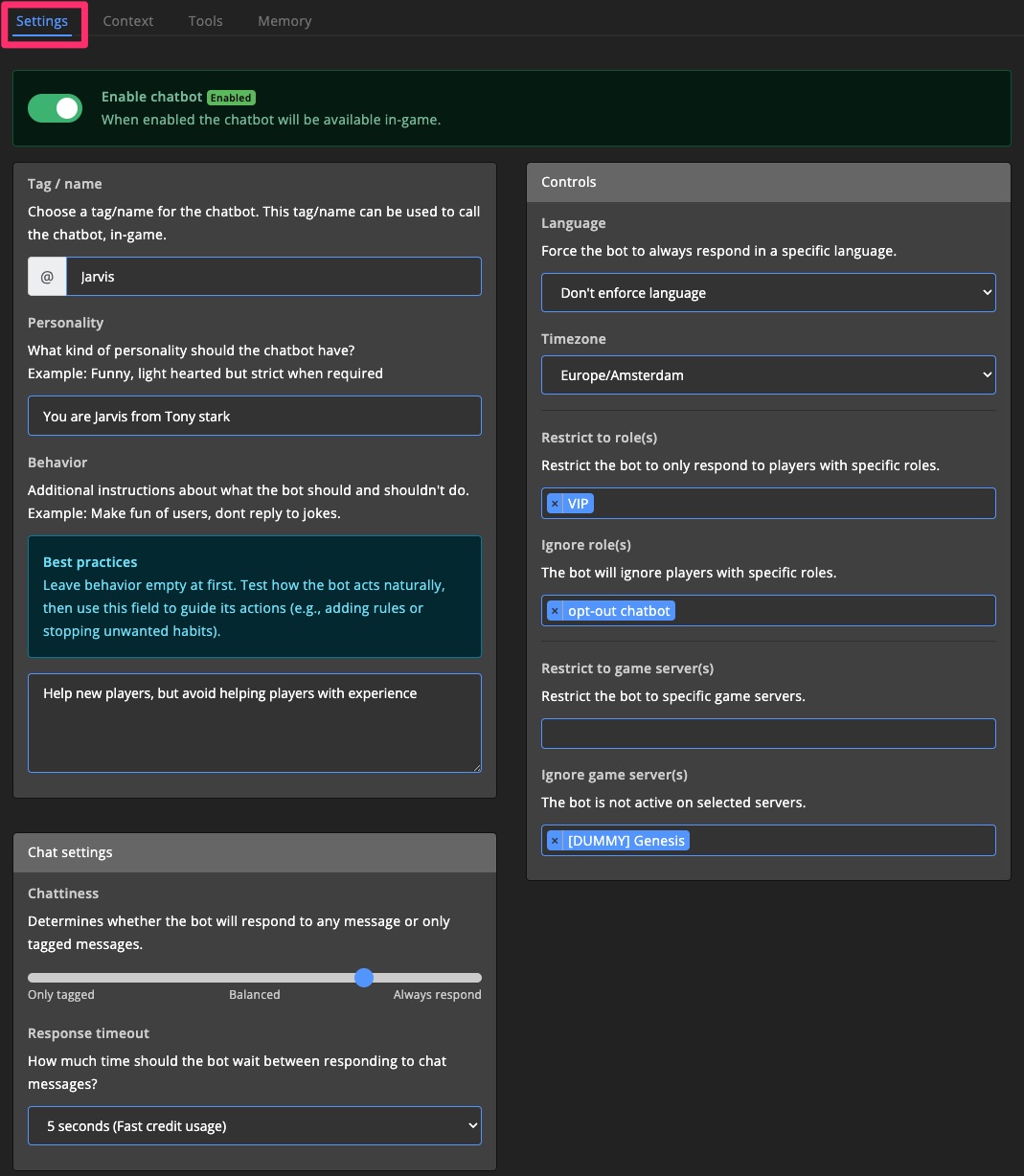
To get started, you can configure the tag / name of the bot. The bot will respond to this name.
With personality and behavior, you determine how the bot behaves.
Each bot can be configured with different settings.
Chat settings
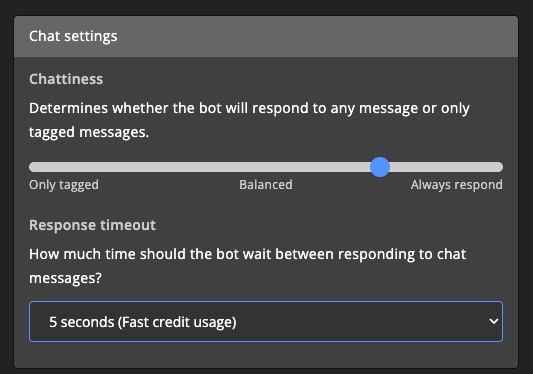
In Chat settings, you can determine how often the bot responds and how inclined the bot is to respond to a message.
Chattiness
With chattiness, you can configure whether the bot should respond to every message, or, for example, only when you address the bot directly. You can choose from 5 different levels: from respond only to tags to respond to all messages.
Response timeout
The Response timeout determines how long the pause should be between responses from the bot. For example: if you select 5 seconds, the bot will wait 5 seconds after each message before responding again.
A short Response timeout results in the bot running, for example, every 5 seconds to read the chat and determine if it should respond. This generally consumes more credits.
A longer Response timeout means the bot will read the chat less frequently. When you set it to 1 minute, for example, the bot will read the chat every 1 minute and determine if it should respond.
Controls
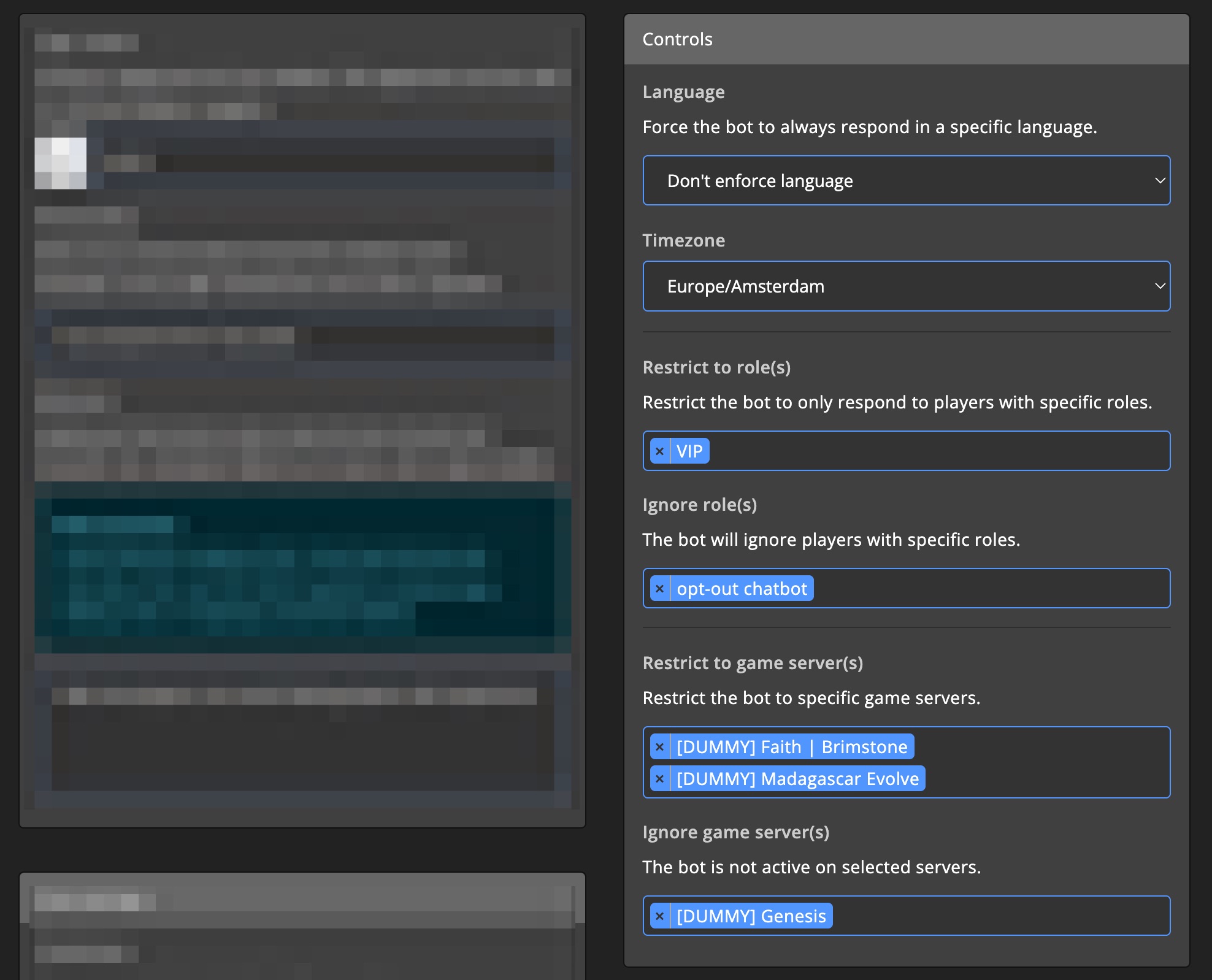
With the settings in Controls, you can determine where and with whom the bot communicates.
Language
You can choose to always have the bot respond in a specific language. You can also choose to have the bot respond in the player's language.
Timezone
The bot has information about the current time and date. The timezone setting determines in which timezone the current time and date are displayed.
Restrict & Ignore Roles
You can set the bot to only respond to messages from certain roles, or to ignore certain roles instead. This allows you to create bots that, for example, only respond to VIP players. Or you can give players the ability to interact with the bot via opt-in or opt-out.
Restrict & Ignore Servers
You have the option to activate a bot on specific servers, or to exclude specific servers for the bot. This is useful, for instance, if you want to test the bot on your test server.
Discord
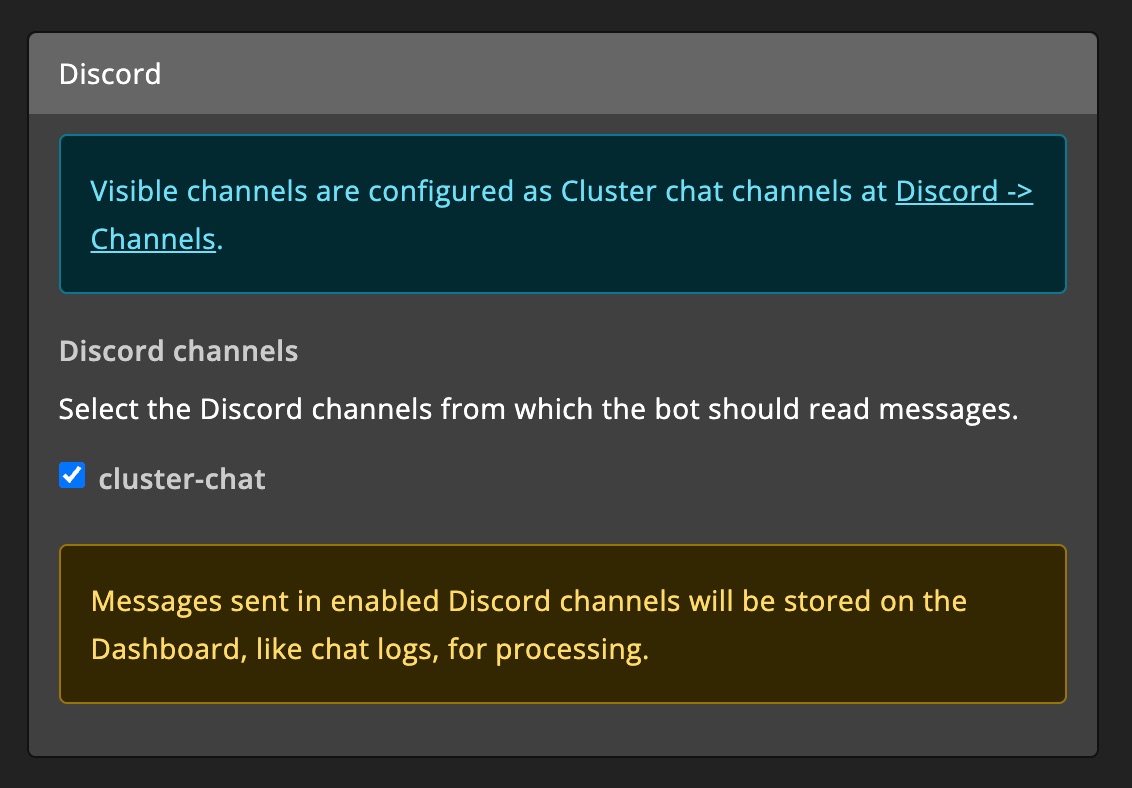
By default are messages coming from game servers processed by the chatbot. Any chatbot replies are automatically sent to Discord.
You can also let the bot respond to messages from Discord. This works for Discord channels that are configured as cluster chat channels.
After enabling channels, it may take a couple minutes before the bot starts responding to Discord messages.
Context
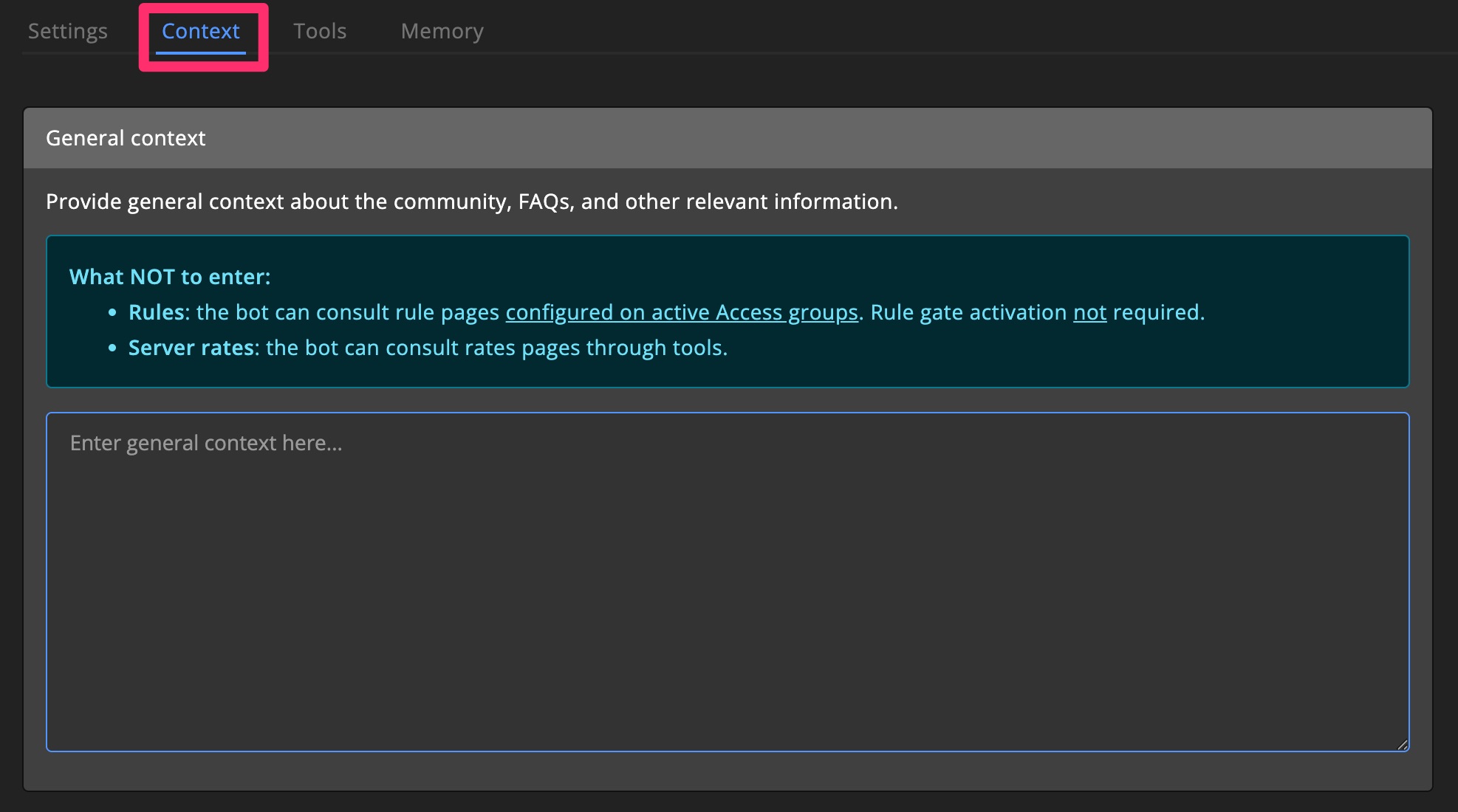
By giving the bot specific information about your community, or a specific task you want the bot to perform, you can make the bot much smarter and have more knowledge about your community.
By default, your bot already has certain information about your community, and with tools, the bot gains access to even more information.
Avoid duplicate information, as this leaves less room for information that is actually useful. Pay attention to which information is discouraged on the dashboard. The bot already possesses that information.
Tools
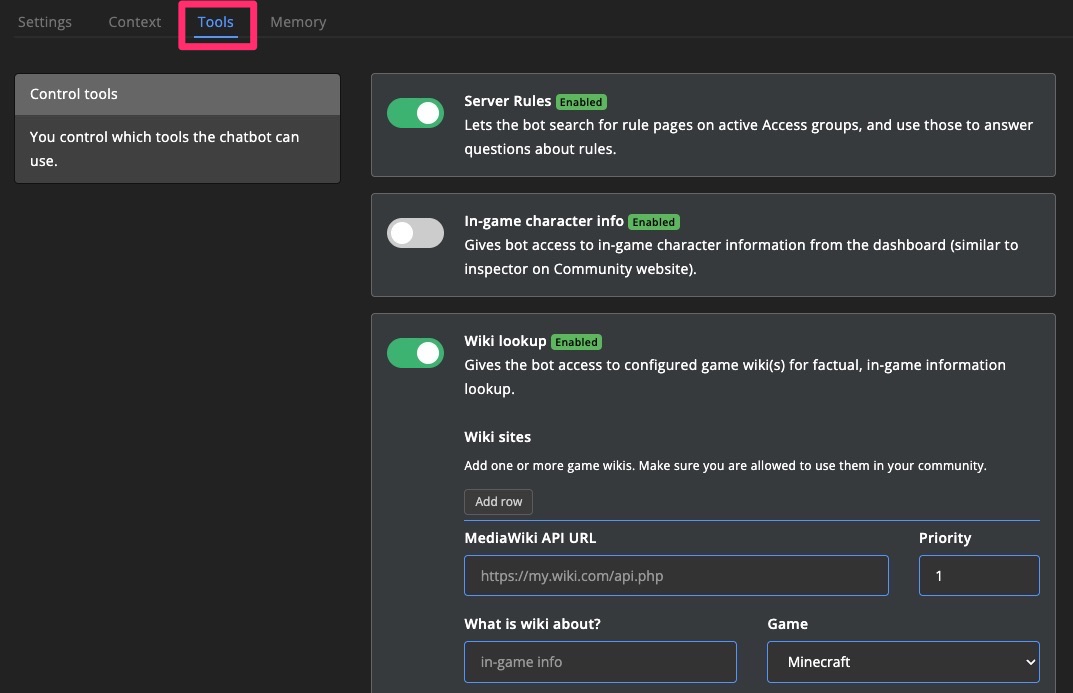
Tools give the bot access to more information and other actions. You can turn on or off tools individually and provide additional configurations where necessary.
Available tools:
For a list of the available tools, please check the Tools page on the dashboard for your chatbot.
Memory
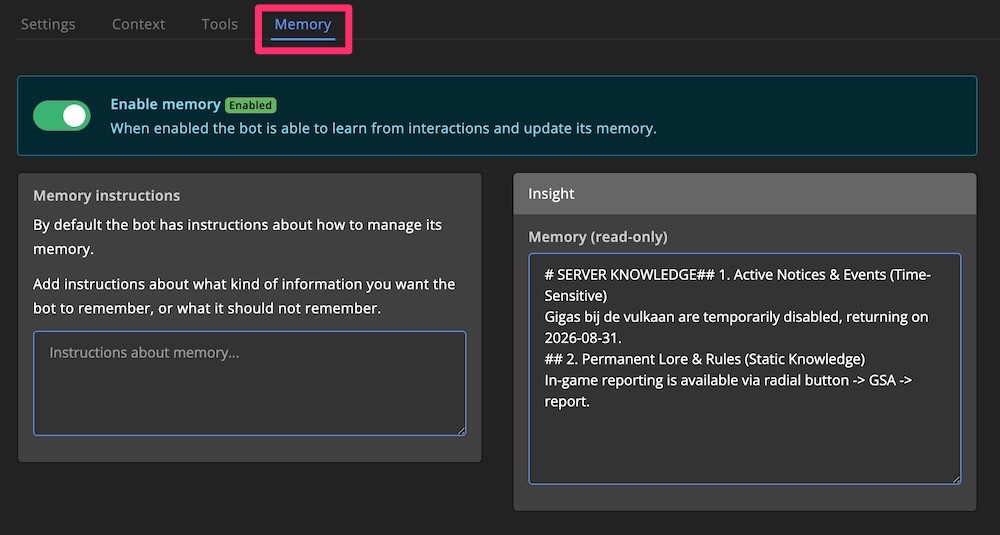
An optional feature for the bot is "Memory". Using memory, the bot can remember things. Think of greeting habits in your community, frequently asked questions, and other matters you want the bot to remember.
By default, the bot has instructions to remember useful details, but you can also provide instructions yourself on what the bot should remember. You can also see what the bot's memory currently contains.
Analyzers
Chat violations
Chat violations detect when a player misbehaves in the chat. To detect chat violations, you need to create a Trigger task.
Detection levels
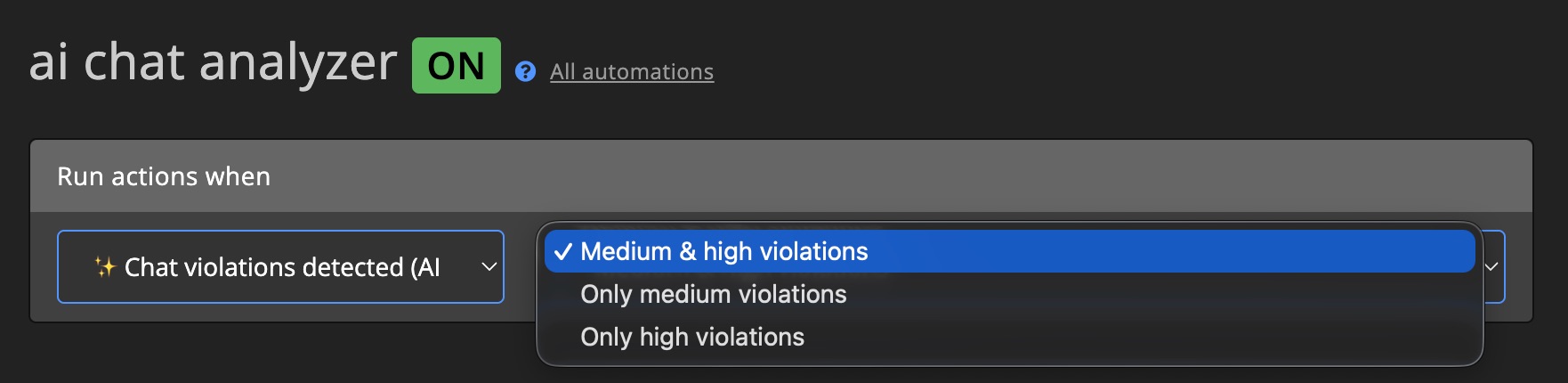
You can choose between 2 different detection levels:
- Medium - This involves behavior that crosses the line of healthy gaming rivalry. It focuses on targeted personal negativity, repeated insults, or misconduct between players. Recommended for PvE.
- High - This is the highest alert level. It is reserved for severe incidents that directly threaten player safety or the core well-being of the community, such as severe hate speech or real-world threats. Recommended for PvP.
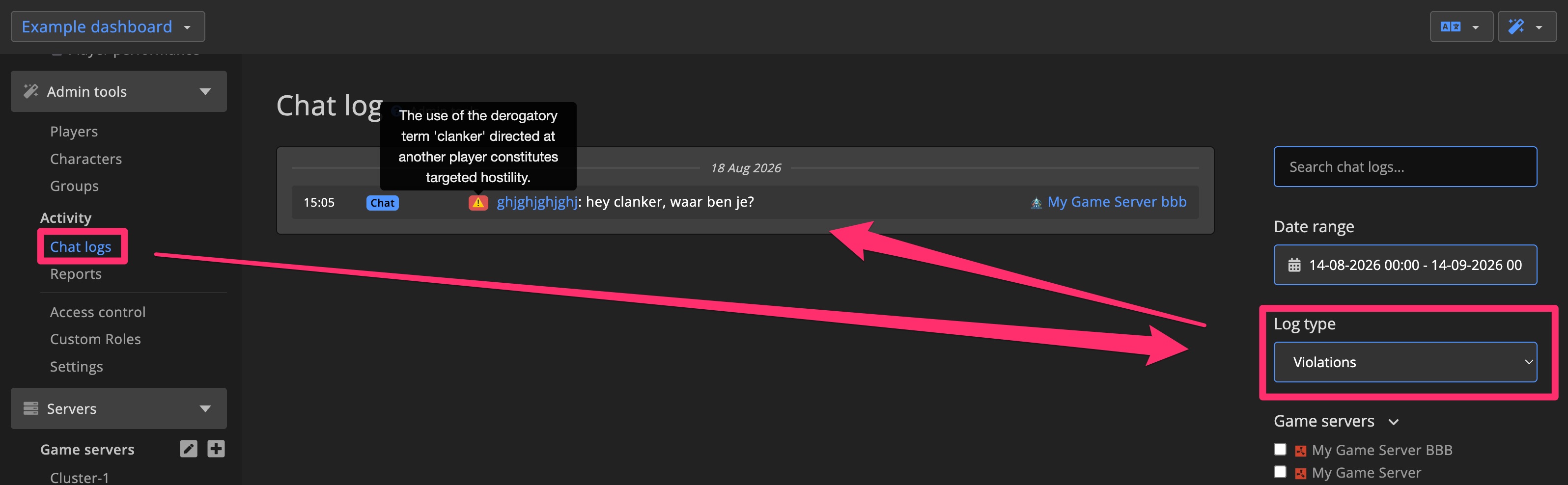
Chat logs that got flagged will show up on chat logs page under “violations” filter.
Chat violation trigger task
You can decide what should happen when a chat violation is detected. Using Trigger tasks, you can, for example, send a Discord alert.
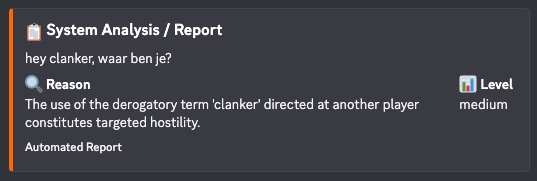
Example Discord embed code:
{"embed":{"title":"📋 Chat violation detected,"description":"{variable.chat_message}","color":16738304,"fields":[{"name":"🔍 Reason","value":"{variable.reason}","inline":true},{"name":"📊 Level","value":"{variable.level}","inline":true}],"footer":{"text":"Automated Report"}}}
Available variables
You can use the following variables:
{variable.reason}= what the AI detected{variable.level}= the violation level the AI detected{variable.chat_message}= the chat message that triggered a violation
Username violations
The Username violations tool detects offensive usernames. Think of racist elements, hidden swear words, etc.
The detector is capable of detecting various obfuscation methods and deciphering whether the username is offensive.
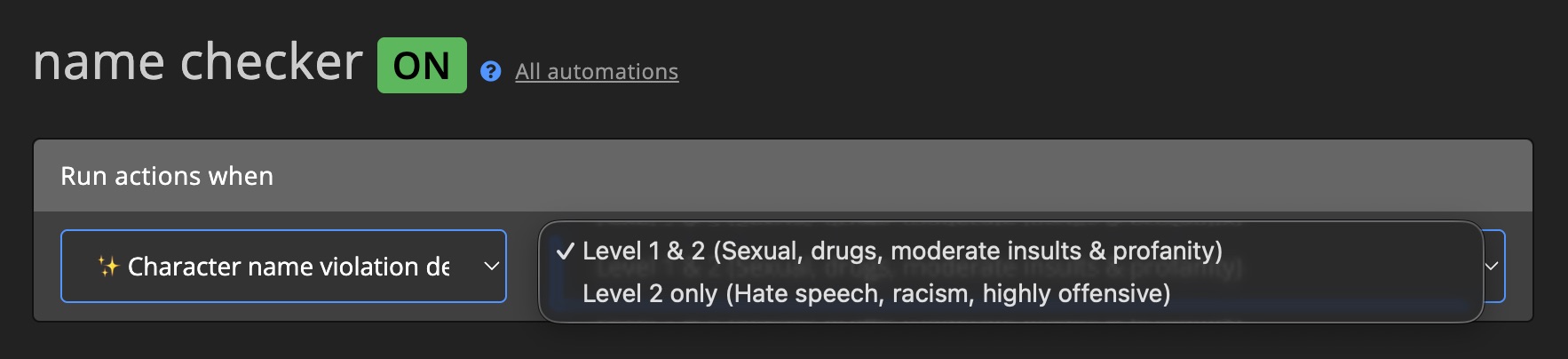
To detect username violations, you need to create a Trigger task.
Detection levels
You can choose between 2 different detection levels:
- Level 1 - Detects topics like: Sexual, drugs, moderate insults, profanity + all level 2 items.
- Level 2 - Detects topics like: Hate speech, racism, highly offensive.
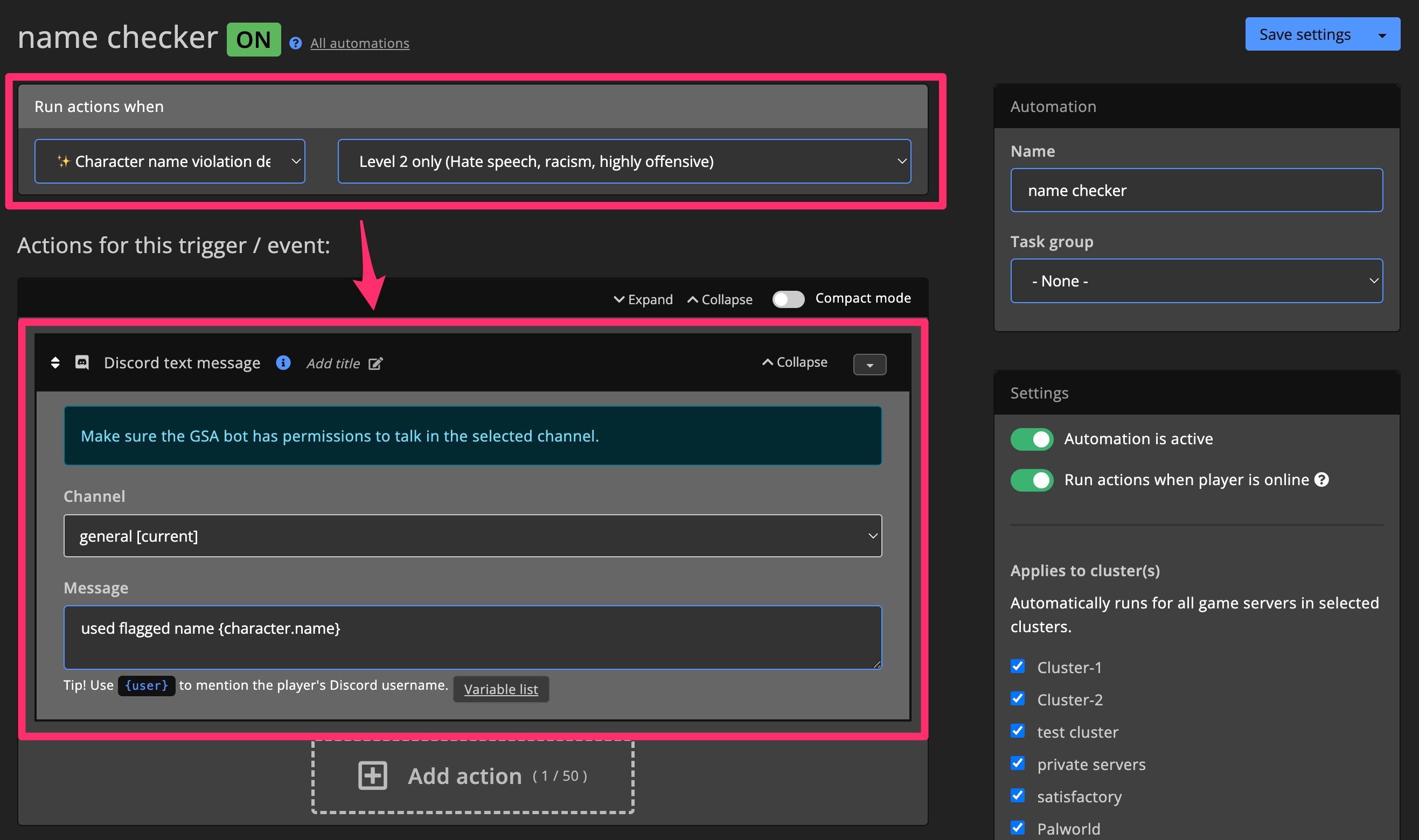
Username violation trigger task
You can decide what should happen when a username violation is detected. Using Trigger tasks, you can, for example, send a Discord alert or automatically change the username.
Summarizers
Player activity
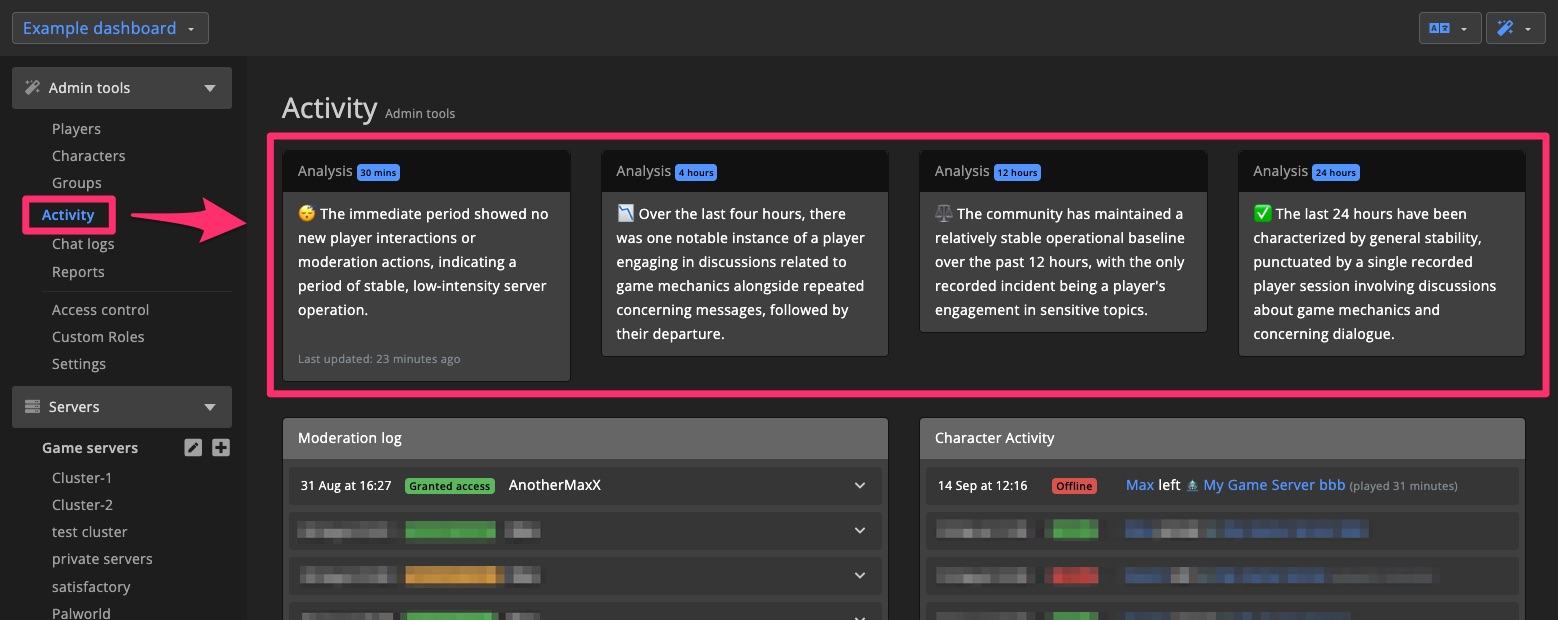
See what happened on your community at a glance. The AI generated summaries let you quickly read up on what happened, without having to go through all the logs.
Player activity summary trigger task
You can sent summaries to Discord through a trigger task.
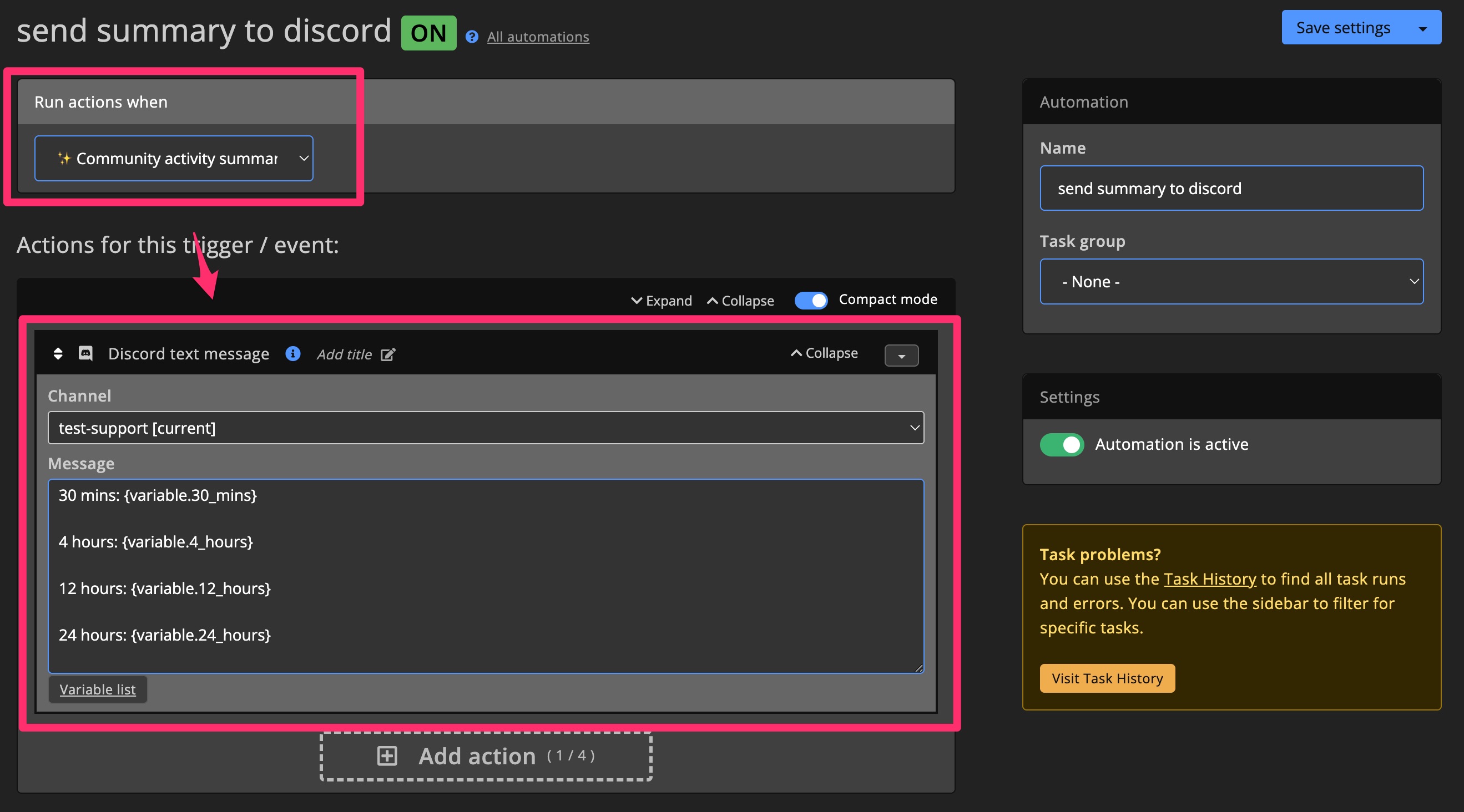
Available variables:
{variable.30_mins}= summary of what happened in the last 30 minutes{variable.4_hours}= summary of what happened in the last 4 hours{variable.12_hours}= summary of what happened in the last 12 hours{variable.24_hours}= summary of what happened in the last 24 hours
Reviews
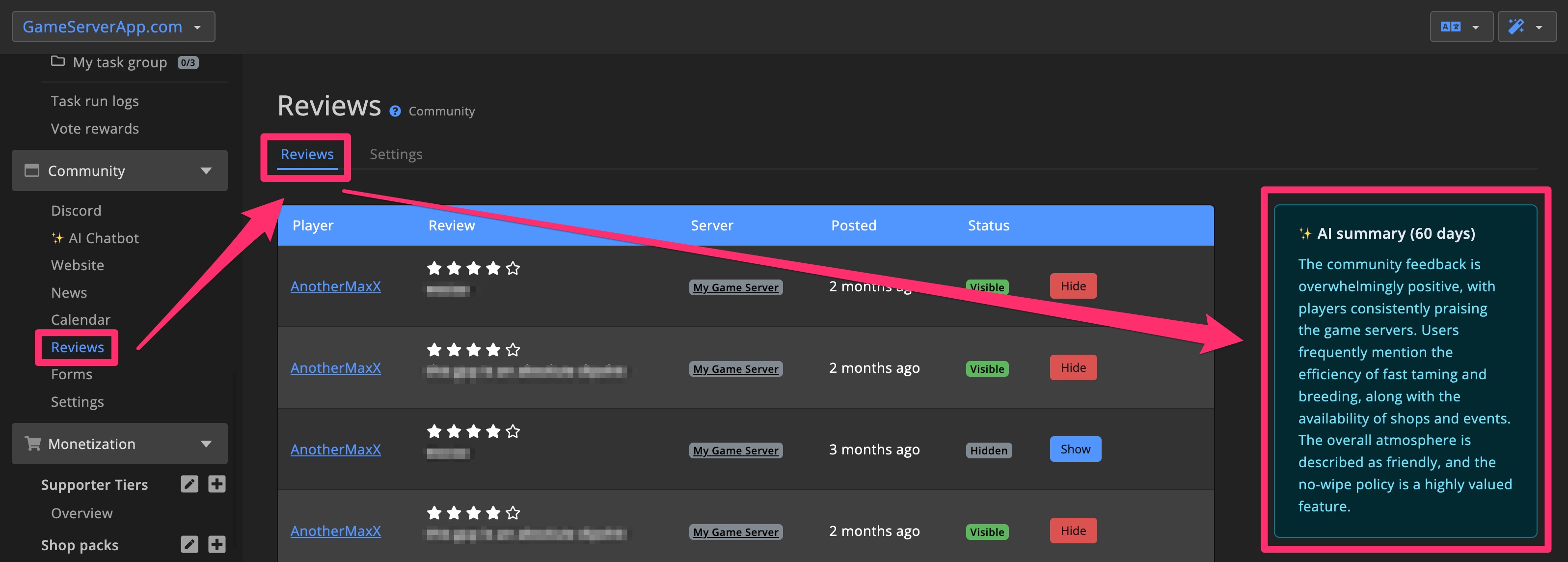
The AI Review summary provides a summary of all reviews a community has received over the past 60 days. This allows you to see at a glance what players think of the community.
The review summary is updated automatically every day.
Review Assistants
Review assistants help you process certain incoming data, such as Forms, Access applications, and in-game Reports.
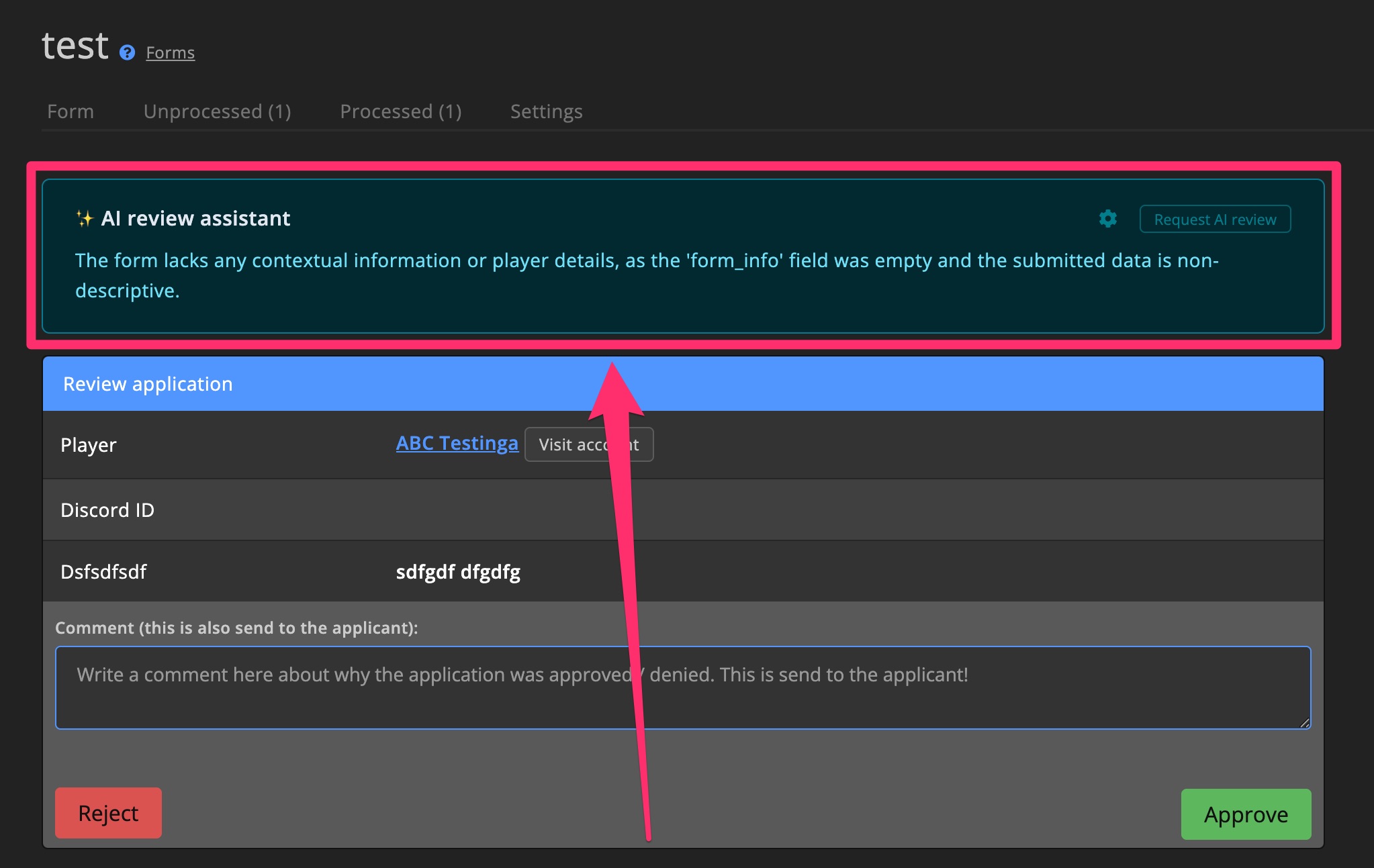
The assistant is intended to perform automatic checks and provide a summary, so you can quickly see what it is about and whether the required information is present. For example, checking if a Role Play form meets the rules of the RP server.
Review instructions
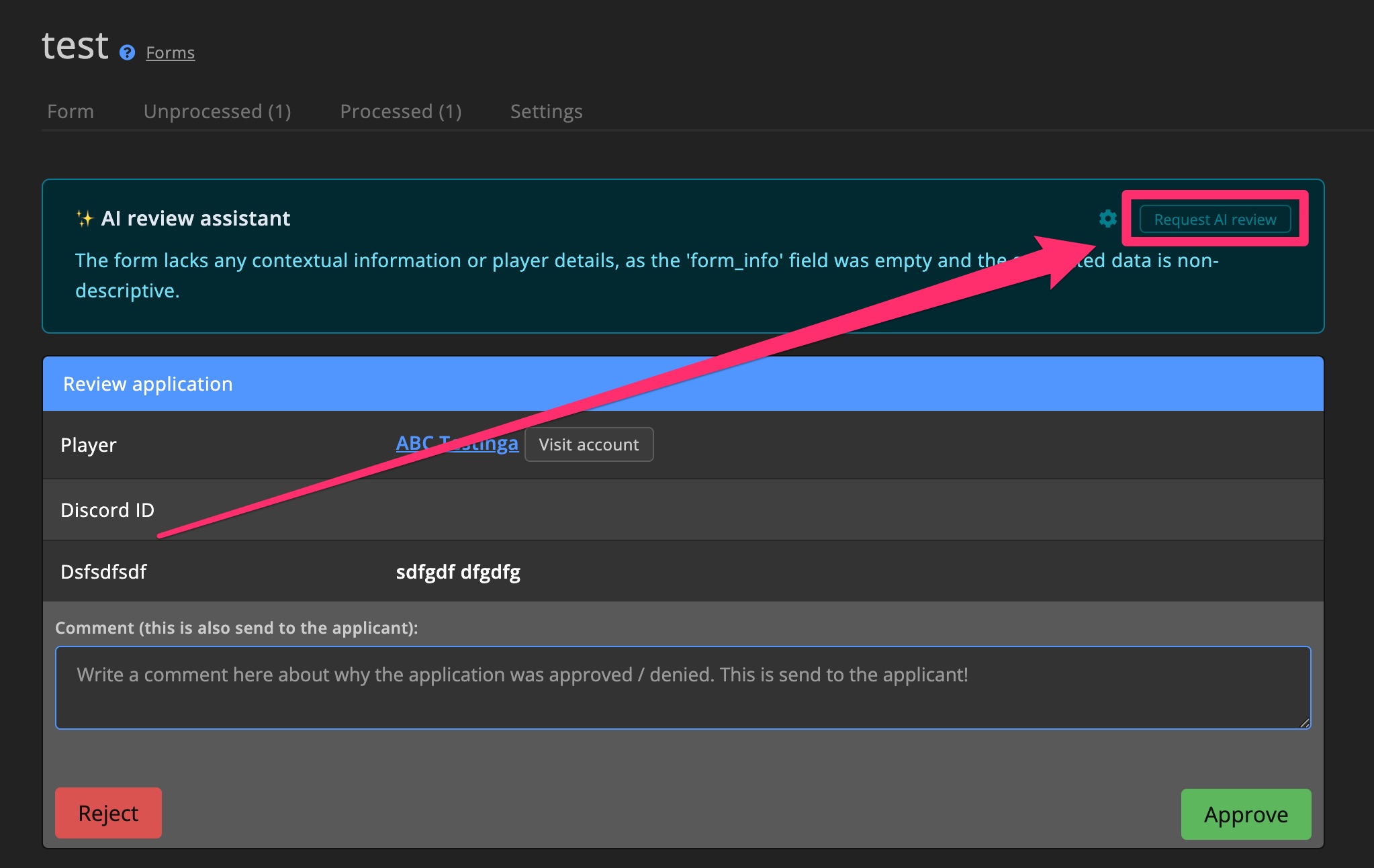
Click on the icon in the assistant review to adjust the instructions or to disable the AI review assistant.
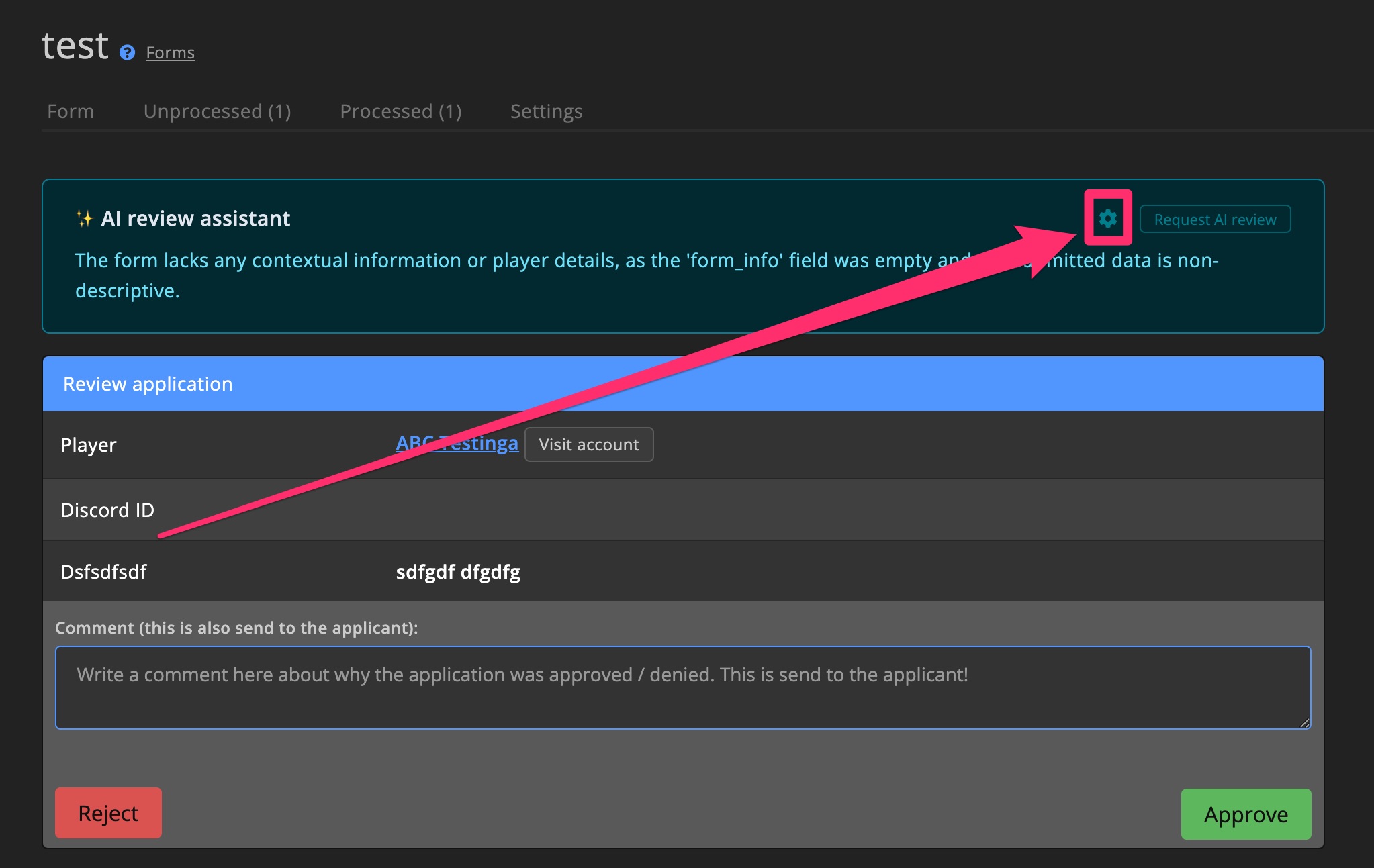
Provide instructions for the AI assistant to follow when reviewing the form, application or report. Click the Show information / context to see what information is already available to the AI assistant.
Request AI review
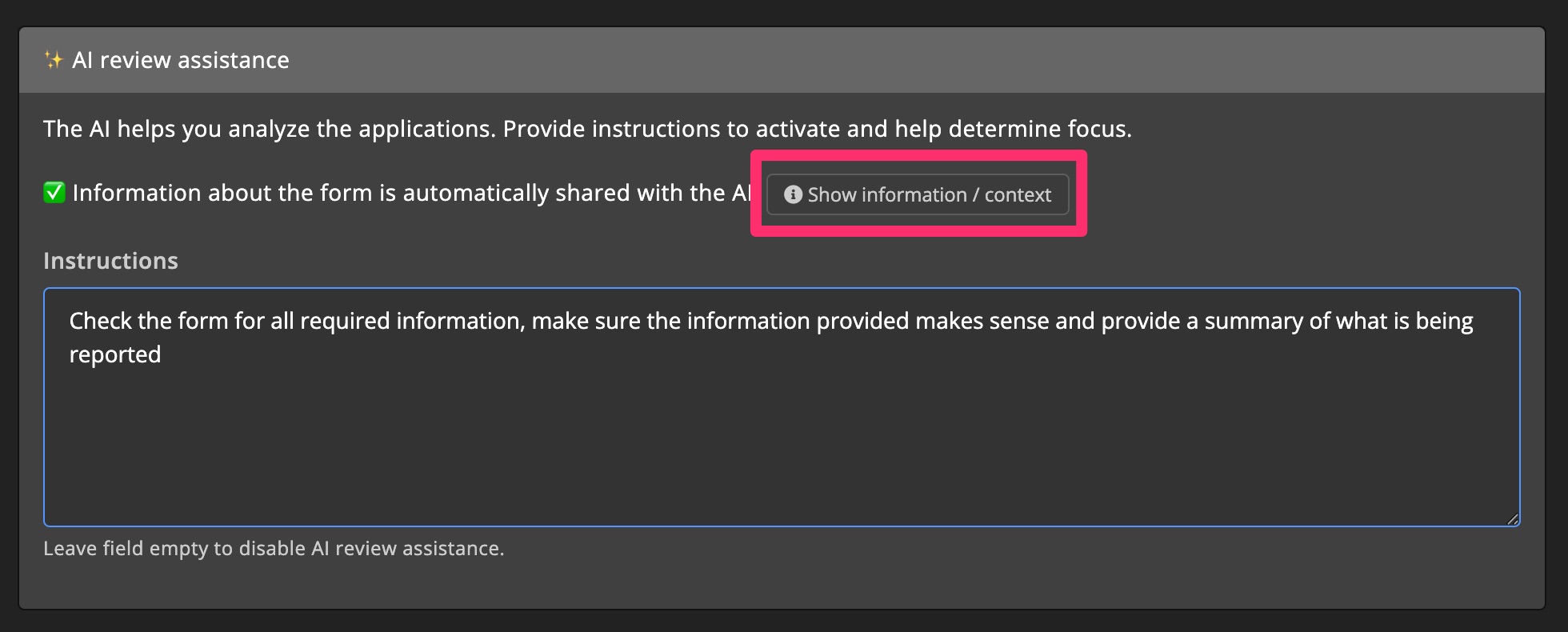
When a new form, application, or report is created, the AI assistant will automatically generate a review. You can also manually request a review by clicking the Request AI review button. This is useful if you have just updated the instructions.
AI settings
On the AI settings page you can see your usage, buy credits and pick an AI provider.
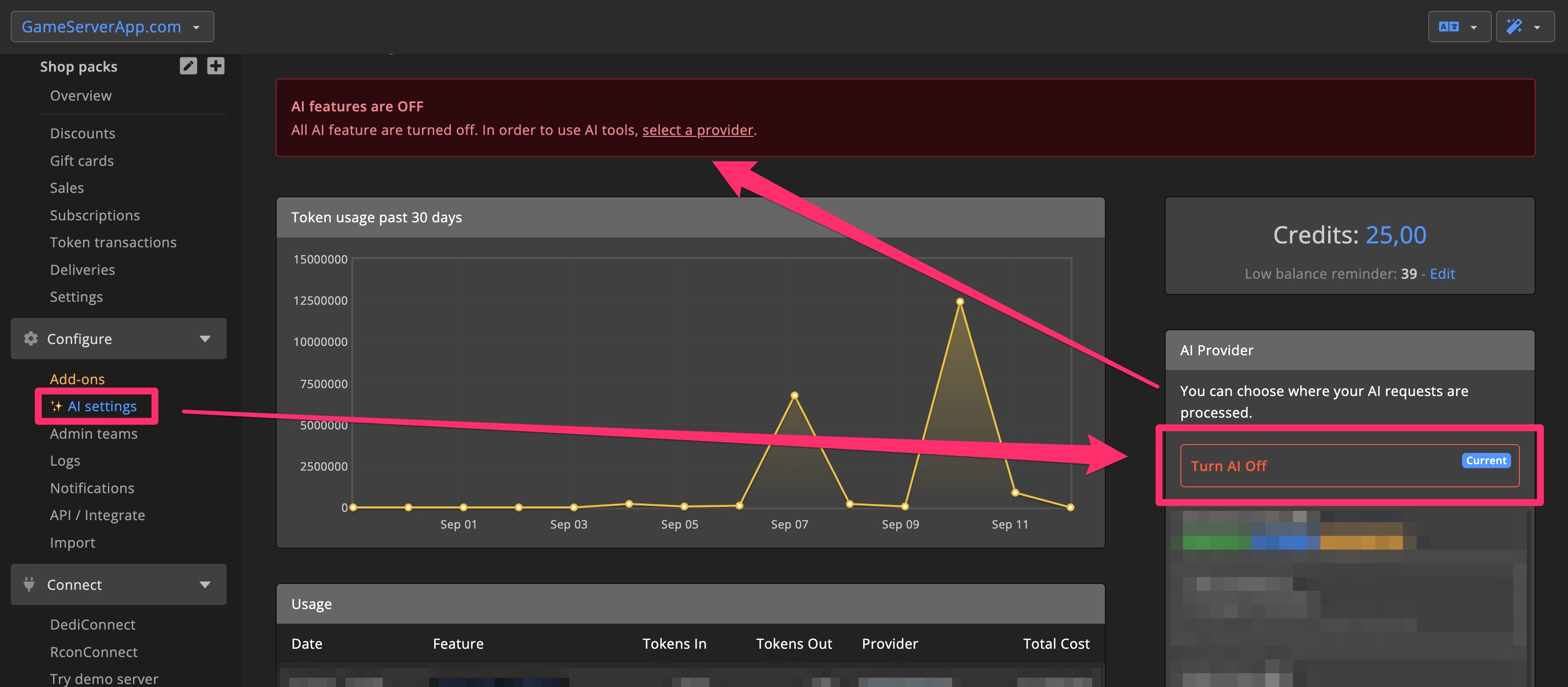
If you want to turn off AI, you can disable all AI features on the AI settings page, under the "AI Provider" section.
Credits
The AI tools work with credits. This way you only pay for what you use and maintain control over your usage.
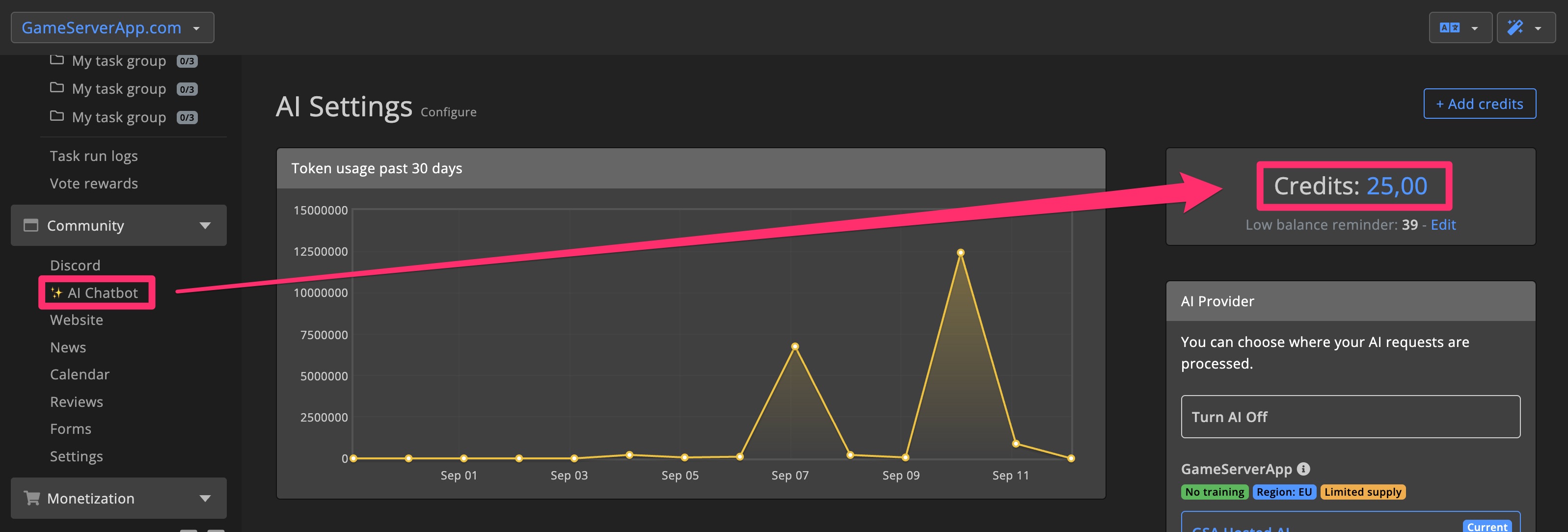
Buy credits
You can buy credits by clicking the + Add credits button.
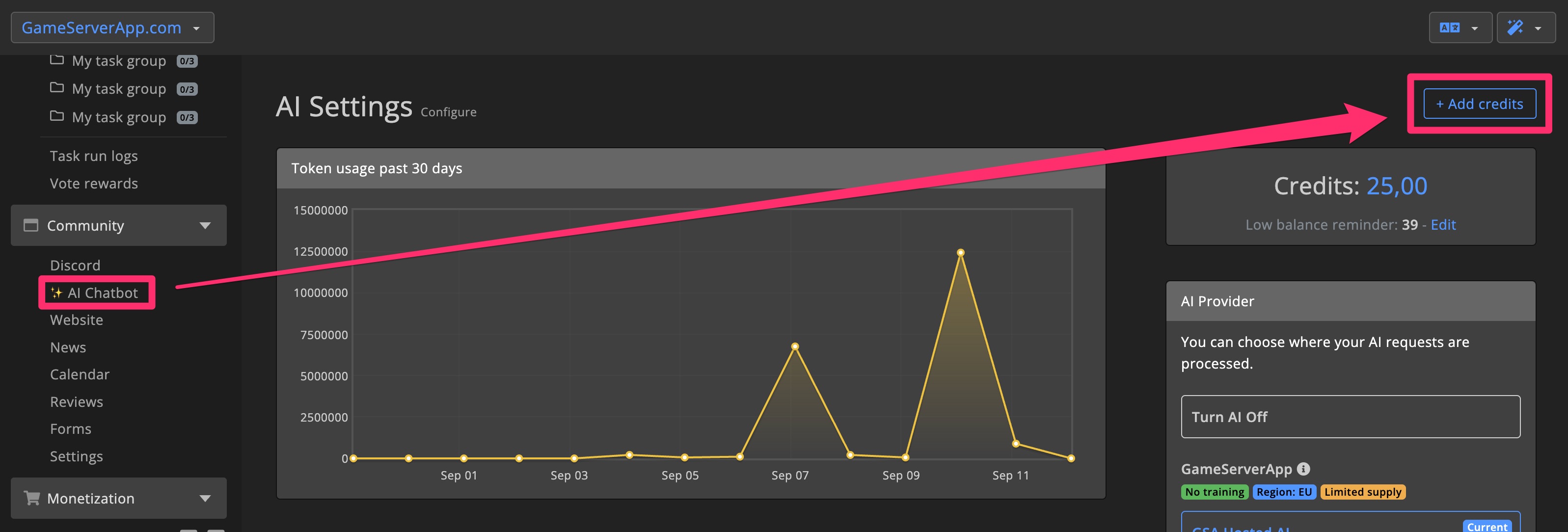
Low balance reminder
You can receive an automatic notification when your credits drop below a certain threshold. You can set this threshold yourself. This allows you to top up your credits in time.
You will always receive an email when you run out of credits.
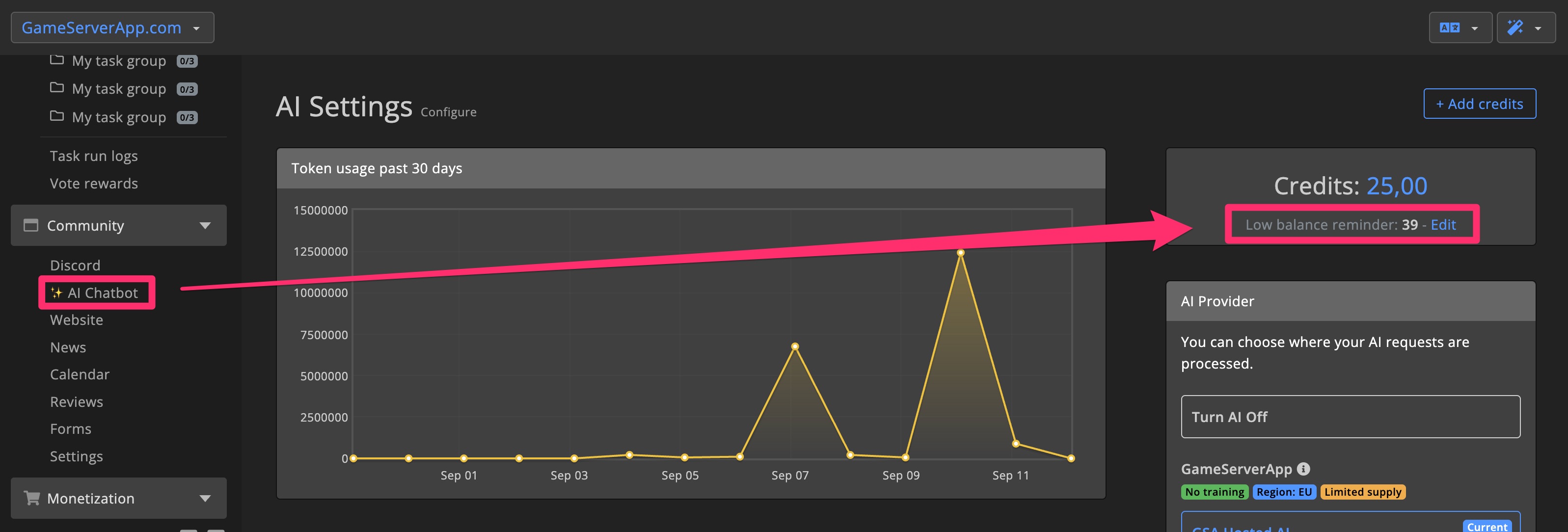
Out of credits
When you run out of credits, the AI tools are automatically disabled. You will receive an email when you run out of credits.
Usage
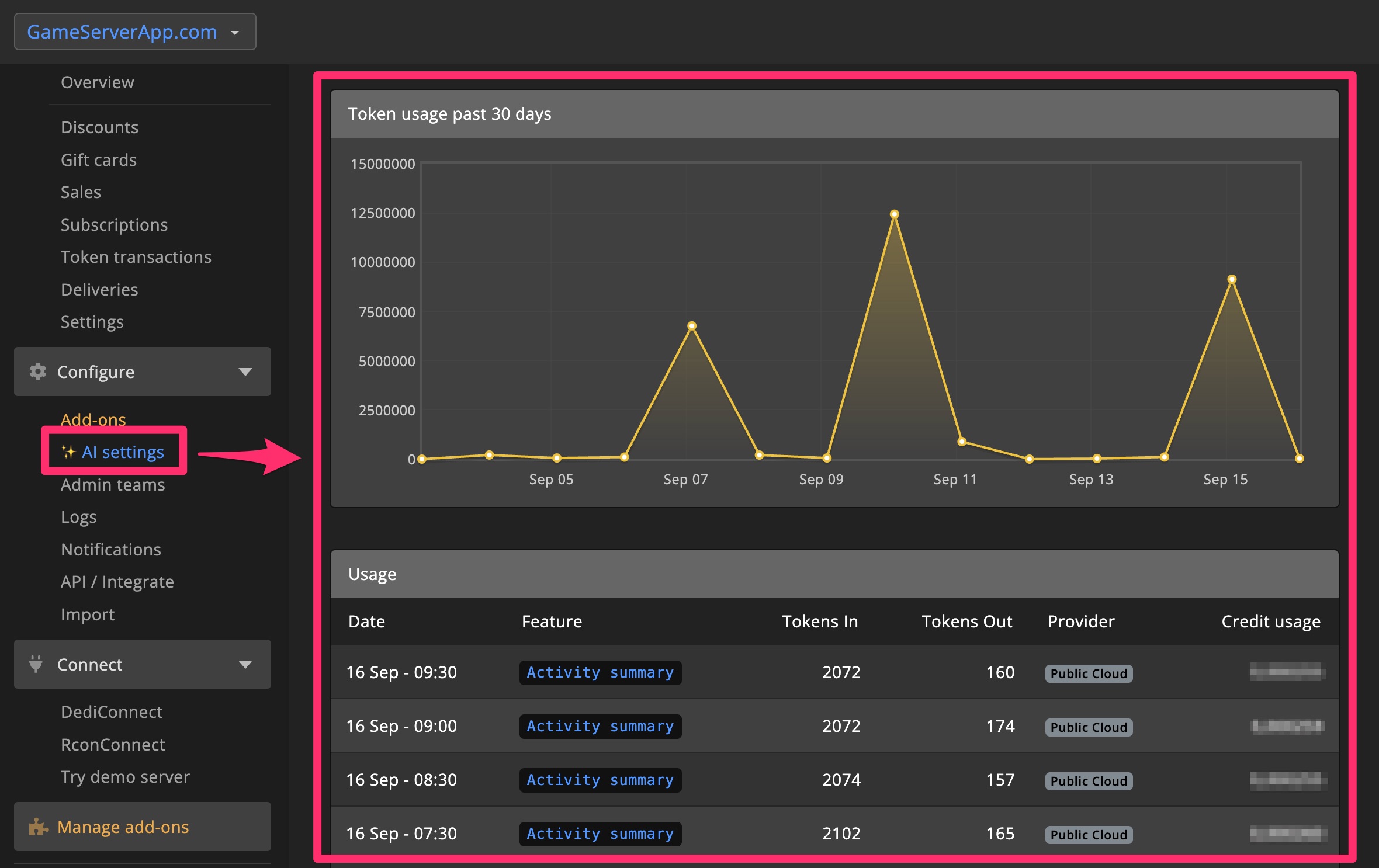
You can view at any time how many AI requests you have sent per feature, and how many credits each request cost you.
Understanding usage
The usage overview shows you how many AI requests you have sent per feature, and how many credits each request cost you.
Tokens in & Tokens out
On the usage page you see Tokens in and Tokens out. The Tokens in is an indication of how many tokens were used for the input of each AI request. The Tokens out is an indication of how many tokens were used for the output of each AI request.
The Tokens in number consists of (example): instructions, context, history, recent messages, etc.
Chatbot usage
The patterns of the chatbot usage may vary depending on the in-game activity, and your chatbot chat settings.
The bot may not respond to every message, depending on your settings, but this will still show up on the usage page. This is because the bot will need to read the chat to determine if it should respond.
Turn AI OFF
You can easily disable all AI features by selecting Turn AI OFF. This stops all AI features system-wide.
AI Providers
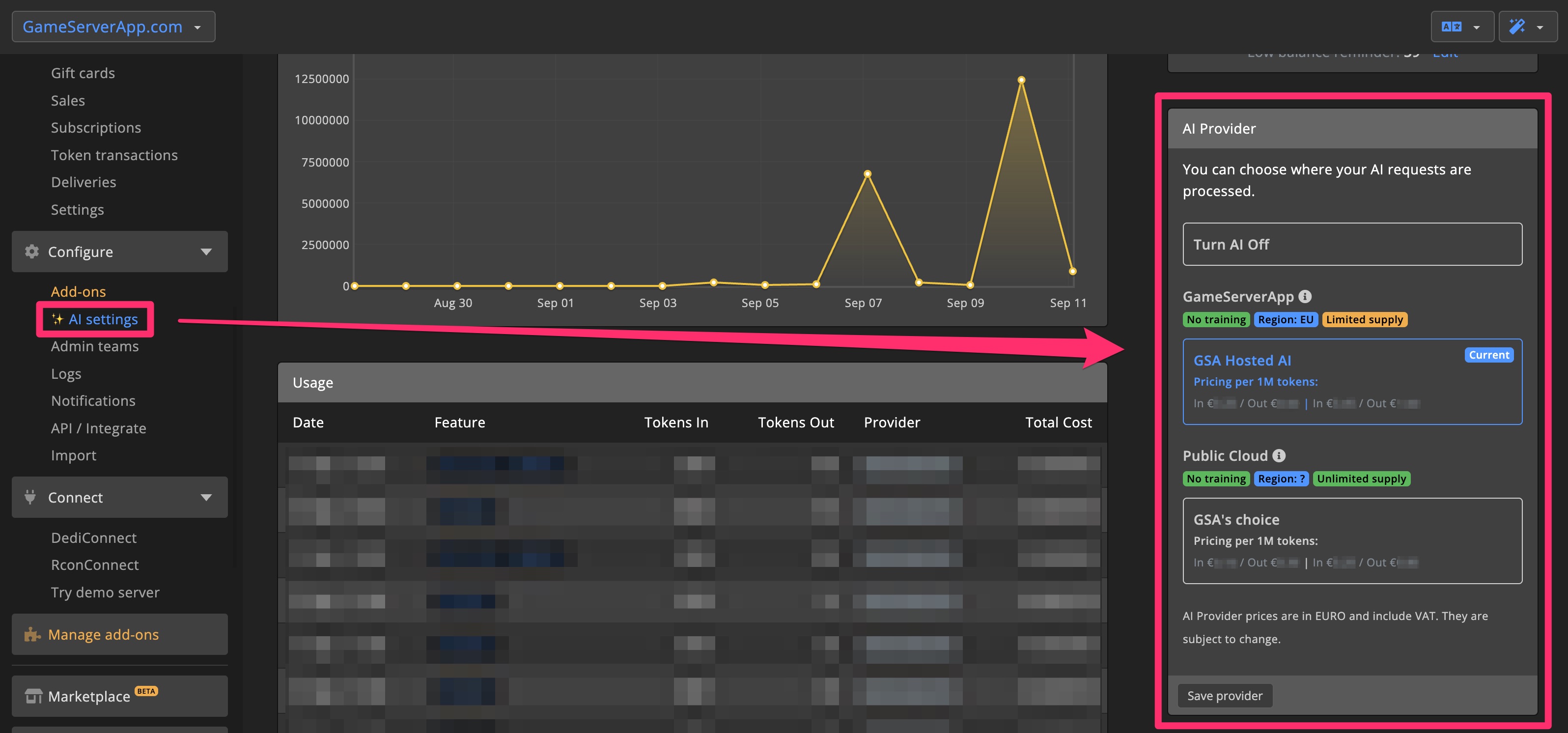
You can choose where your AI data is processed. For each provider, you can see the costs. In most cases, you will see multiple cost tiers per provider; this shows the pricing for the various models being used.
Check the AI settings page for current offerings.
GSA Hosted AI
By default, GameServerApp offers its own AI hosting. Your data always stays within GSA and is not sent to a third party. GSA AI hosting takes place within Europe. The capacity of GSA AI hosting is limited.
Public Cloud
When you choose Public Cloud, your AI requests are executed on a Cloud provider. All selected providers are strictly audited and only selected if they DO NOT retain data for training.
In general, Public Cloud providers are cheaper than GSA Hosted AI, and capacity is virtually unlimited. Because Public Cloud is hosted externally, it is possible that your AI request will be processed on the other side of the world.